FitnessSyncer Leaderboards
FitnessSyncer Leaderboards is a simple way to have a health and fitness competition between your family, friends, and colleagues. And with FitnessSyncer, you can use whatever device and services you currently use, so it is super easy!
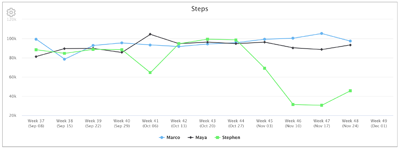
FitnessSyncer Leaderboards show standings, a chart and a table for any data field you choose, such as steps, distance, weight or sleep, so you can see who is leading now and how each period went. The data is based on data gathered from wearables and supported health and fitness services that we support, allowing for great competition between users of Fitbit, Garmin Connect, Google Health Connect, Apple Health, and more. No matter your device, you can participate with ease!
Participation in FitnessSyncer Leaderboards is free. However, to create and organize a FitnessSyncer Leaderboard, a FitnessSyncer Pro membership is required.
Do I need to be a FitnessSyncer Pro subscriber?
The only person who needs to be a FitnessSyncer Pro subscriber is the Leaderboard organizer. All other participants in the Leaderboard do not need a subscription.
How do I create a Leaderboard?
Go to Leaderboards and select Create Leaderboard. The editor has five steps, and you can move between them at any time:
- The competition. Choose whether participants are ranked on one data field, or earn points across several.
- What decides the winner. Choose the data type and the field. You can add other fields to show next to it. For a field that adds up, such as steps or distance, participants are ranked on their total. For a measurement, such as weight or resting heart rate, you choose what to rank on and whether the lowest or the highest value wins.
- Name and schedule. Give the Leaderboard a name. Dates are optional: without them the Leaderboard is ongoing and covers the last 12 weeks.
- The participants. Invite participants by e-mail and optionally group them into teams.
- How it is shown. Choose which views the Leaderboard has (standings, team standings, a trend chart, a table by period) and their order. One is enough, and the first is what participants see first.
Under every step, What participants will be told shows the rule in a sentence, exactly as participants will read it in their invitation.
The fields, the ranking and the points cannot be changed after you save, because each participant agrees to exactly these. To change them, use Clone, which copies the Leaderboard and its participants into a new one. Because of this, we suggest saving with only yourself first and inviting everyone once you are happy with it.
Participants receive an invitation e-mail in your e-mail language, which you can change under your Preferences.
How is the winner decided?
It depends on the kind of data field, and the Leaderboard says which rule it uses at the top.
- A field that adds up (steps, distance, calories, minutes) is ranked on the total for the period, and the highest total wins.
- A measurement (weight, resting heart rate, pace, sleep efficiency) is ranked on the average, the best single measurement, or the change from each participant’s first measurement. The organizer chooses whether the lowest or the highest wins.
- Points are earned for each scored field, and the most points wins.
Participants with equal values share a place. A participant with no data is listed without a place, with the reason, and is never counted as zero.
How do points work?
A points Leaderboard gives each scored field a number of points for a given amount, for example 1 point for every 1,000 steps, 5 points for every hour slept, or 3 points for every minute in heart rate zone 3. The fields can come from different data types, so one Leaderboard can combine activity and sleep.
You can start from a ready-made set (minutes in each heart rate zone, power zone or sleep stage) or build your own list. The organizer can also set a daily limit, which is the most points anyone can earn in one day, so that a single very long workout does not decide the result.
Heart rate and power zones are the zones each participant has set in their own Preferences. A source that reports only daily totals has no minutes in a zone, so it earns no zone points, and the Leaderboard says so next to that participant.
Can we compete in teams?
Yes. In The participants step of the editor, select Compete in teams and enter the team names. You then choose who picks the team (you can assign each participant, or let each participant choose when accepting) and how a team is counted (the average of its members, which is fair when teams are different sizes, or the sum). The Leaderboard then shows team standings as well as individual ones.
How is a team's average counted?
A team's average counts every member who has accepted the invitation, and a member with no data yet counts as zero. Invitations that have not been accepted yet are not counted. Next to each team, the Members with data column shows the share of its members who have data.
A Leaderboard created before this rule existed keeps the rule it started with, which averages only the members who have data.
What happens when a Leaderboard ends?
A Leaderboard with dates stays open for three days after its end date, so that data which syncs late still counts. After that the result is final and is kept for three months. If e-mail updates are on, participants receive the final result.
Can I opt-out?
Yes, you can remove yourself from the Leaderboard at any time. Visit the Leaderboards page, select the gear on that Leaderboard, and select Leave Leaderboard. In the app, Leave Leaderboard is at the end of each Leaderboard. If you change your mind afterwards, the organizer has to invite you again.
How do I read the Leaderboards page?
Each Leaderboard is a card with its name, its status and the rule that decides the winner. The card opens on the first view the organizer chose, which is usually the standings: your own place, then every participant compared with the leader. The other views, such as the trend chart, are buttons under the card that open and close in place.
The gear on each card holds Download CSV, the e-mail update setting and, for the organizer, Properties. On a Leaderboard with more than 100 participants, the standings show the first 100 places and the places around your own, and the download has every participant. On a Leaderboard with more than 20 participants, the trend chart and the table show the ten leaders and you, and on a Leaderboard with a team goal one more line, Everyone else, adds up everyone else so the total still counts toward the goal. Their download has every participant's values for each period.
What services do you support?
FitnessSyncer supports a wide variety of services depending on the type of data for the Leaderboard. To see our supported services, see the FitnessSyncer supported list of apps, trackers, and platforms.
Accessing Leaderboards in FitnessSyncer Apps
To access Leaderboards in FitnessSyncer for iOS and Android:
- Navigate to the Dashboard
- Go to the Options menu
- Select Load Dashboards, then Leaderboard Overview
Your Leaderboards are shown there. With the latest version of the app you can also accept or decline an invitation and leave a Leaderboard, and the app asks you to confirm before you decline or leave. Creating and editing a Leaderboard is done on the website.
Can I share a link with my friends, family, or colleagues to sign up?
Yes, you can! To do so:
- Edit your leaderboard
- In The participants step, enable Allow anyone with the link to join
- Save
- Edit your leaderboard
- From the toolbar, select the (Share) icon
- Select the way which you would like to the link or copy and paste the link
Note that anyone can signup to participate in your leaderboard up to your user allotment. We do not recommend posting the link on public channels.
How do I make a Leaderboard Competition only between a set of dates?
By default, FitnessSyncer Leaderboards are continuous, but you can specify the start and end dates in the Leaderboard configuration by selecting Fixed dates in the Name and schedule step. You may extend the date if your competition continues beyond the original date.
I want to create a few Leaderboards with the same users; how do I best do that?
Start by configuring one FitnessSyncer Leaderboard and get it to your liking. Then use the Clone button for your other fitness and health metrics.
I received an e-mail for a Leaderboard, but when I signed up, it does not recognize the Leaderboard?
Please make sure that you have signed up with the same e-mail address that the e-mail was sent to. If you wish to make a change, please contact the organizer.
If that is the case, it may be that you no longer have access to the Leaderboard. Please contact the Leaderboard organizer or feel free to contact us for assistance.
Is my data safe and secure?
Your privacy is always strictly maintained, and only the exact data requested for the Leaderboards that you accept are shared. Organizers cannot change the type of data without you re-approving your consent.
The Leaderboard organizer will see the same data that you see in the Leaderboard. The organizer is also not permitted to change the type of data without re-creating the Leaderboard and without you re-accepting the new parameters.
In addition to the organizer, all members of the Leaderboard will see the same data which you see when you visit the Leaderboard.
When the organizer shows only team or group standings, the other participants see your name only if they share one of your teams or groups. This applies everywhere the Leaderboard is shown, including the e-mail updates, the apps and the downloads.
If your organization subscribes to Leaderboards for its people, its owners and administrators, who manage its Leaderboards, see every participant. A group lead sees your name only if you are in one of the groups they are responsible for, unless they take part in the Leaderboard themselves, in which case they see what any participant sees.
Each user within the Leaderboard will be able to see your Display Name. By default, your Display Name is the first section of your e-mail address, but you can change it on the Profile and settings tab of your Account page.
You should only share your metrics with people and organizations you trust.
My employer invited me to a Leaderboard. What does my employer see?
Only what everyone on the Leaderboard sees: your Display Name, your team if the Leaderboard has teams, and the measure the Leaderboard competes on, such as your steps. Your employer does not see the rest of your health data or your account. If your employer also signs you in to FitnessSyncer, read what your company can see.
Your FitnessSyncer account is your own. Your employer can invite you, but cannot accept on your behalf or share anything for you: you choose whether to join, which apps and devices to connect, and you can leave the Leaderboard at any time, which stops your data being shown. Your data is encrypted whenever it is sent and wherever it is stored, and you can delete it, or your whole account, at any time. FitnessSyncer complies with the GDPR; see our Privacy Policy for details.
How is my data identified within a Leaderboard?
Your data is associated with your Display Name. By default, your Display Name is the first section of your e-mail address, but you can change it on the Profile and settings tab of your Account page.
How fresh is the data on a Leaderboard?
FitnessSyncer will ensure that your data on the Leaderboard is updated at least once a day. Some services may be more frequent than this, and some services such as Apple Health may require you to use our app to refresh the data manually.
The data shown on the Leaderboard is up-to-date as to when it was loaded.
Are there any data types not recommended for Leaderboards?
We do not recommend that you create or join Leaderboards with actual personal information that includes your weight and similar data. The list is as follows: Blood Pressure, Body Composition, Glucose, Oxygen, and Temperature.
While you may wish to create one with your closest family, we will warn you when you attempt to join such a Leaderboard.
Alternatively, you can run such a Leaderboard with actual values hidden. Rank by the change from the first measurement, and participants see only the change, never the value itself. Hiding is always on for these data types, and the invitation tells each participant exactly what the others will see. It cannot be changed without creating a new Leaderboard and asking everyone again.
Are there any data types not available for Leaderboards?
ECG and Cycle Tracking data cannot be used for a FitnessSyncer Leaderboard as there is no meaningful competition that we believe is relevant.
I suspect a member of the Leaderboard is cheating.
We do not police the data within the Leaderboard.
How are duplicates handled?
If you have multiple records, FitnessSyncer will automatically remove duplicate records and select the sample with the richest dataset.
I used to have access to a Leaderboard, but I do not anymore?
The usual cause of this is one of the following:
- The organizer has deleted the Leaderboard
- The organizer has revoked your access to the Leaderboard
- The organizer is no longer a FitnessSyncer Pro subscriber
- The organizer has deleted their account
- You have removed yourself from the Leaderboard
The best way to resolve this is to contact the organizer.
Can I create a challenge towards a common goal?
If you are trying to create a challenge so that your entire team reach a common goal of say 5,000,000 Steps in a month, FitnessSyncer Leaderboards can help!
Choose a field that adds up, such as steps or distance, then select “Set a team goal that everyone works toward together” and enter the goal value. A team goal is not offered for a measurement such as weight, because those values do not add up.
The Leaderboard then shows how much of the goal is done, compared with how much of the time has gone, and each participant’s contribution. The trend chart becomes a stacked column chart with a goal line, and each period carries everything up to and including it.
Looking for more options or a different representation? Please contact us.
Can we race between our sites?
Yes. A team goal can be a virtual race between real places, such as your company walking from its head office to an office on the other side of the world, with your other sites as checkpoints along the way.
Set a team goal as described above, then select Add checkpoints along the way. Give the route a Start line name and a Finish line name, and add each checkpoint with its name and its distance from the start, in miles or kilometers depending on your measurement preference. The distance to the finish is the team goal. A Leaderboard can have up to 25 checkpoints, each with a different name, and each one must be farther from the start than the one before it.
To have the distances worked out for you, give the start, each checkpoint and the finish their coordinates, a latitude and a longitude such as 48.8566, 2.3522, which you can copy from most maps, and select Calculate distances. Each distance is filled in along the shortest path over the earth from one place to the next, and you can still change any of them before you save.
Everyone's progress adds up along the route. The Leaderboard marks each checkpoint on the goal bar, says which one was reached last and on what day, and how far it is to the next stop. Show the route lists every stop with the day it was reached or the distance still to go, and the update e-mail says when a checkpoint was reached. Nobody's location is used: a checkpoint is a distance along the route, and its coordinates are used only to work out that distance.
To race your sites against each other rather than walk together, give the Leaderboard teams and select Each team races the whole route on its own. Each team then travels the whole route on its own, so set the finish for one team. The goal bar shows where each team is, the route lists which team reached each stop first, and each participant's update e-mail says where their own team is.
To tell people as soon as a checkpoint is reached, choose in E-mail when a checkpoint is reached whether nobody, only the Leaderboard's organizer, or everyone taking part is sent an e-mail; in a team race, everyone means the members of the team that reached it. Each checkpoint is announced once, and nobody who turned off the Leaderboard's e-mail receives it.
To see the whole journey, select Progress along the route in How it is shown. It charts the running total each day of the race, a line for each team in a team race, with a line across the chart at each checkpoint and at the finish.
Checkpoints work on a Leaderboard with or without an end date.
To count only walking and running, choose Steps as the field rather than a distance. A distance counts every activity that has one, including a bike ride, while steps come only from walking and running and are counted by nearly every phone and watch. On a Steps Leaderboard the route is still entered and shown in miles or kilometers, and Steps per kilometer sets what a kilometer is worth. The default, 1,312, is an adult's average walking stride, and participants see the figure with the route. The same figure counts for everyone, whether they walk or run: every step moves a participant the same distance along the route.
Can I create a challenge for the person with the most weight loss?
Yes, you can easily create a challenge for the person with the most weight loss or similar metrics.
When creating the Leaderboard, choose Weight as the field and rank by Percent change from the first measurement, and choose The lowest value wins. Percent change is fair across different starting weights. Actual weights are never shown to anyone; participants see only the change.
We suggest setting dates for such a Leaderboard, so that the first measurement stays the same throughout. This cannot be changed without creating a new Leaderboard.
How do I transfer a FitnessSyncer Leaderboard to another user?
Please contact us, and we can make the change.
Is there a limit to the number of users for FitnessSyncer Leaderboards?
A Leaderboard holds up to 20 participants. A Leaderboard a coach starts for one of their programs or tags holds every client in it, however many there are, and only those clients can be invited to it. If you would like Leaderboards for your organization, or a Leaderboard with more than 20 participants, please contact us, and read Running Your Organization on FitnessSyncer for how an organization runs its Leaderboards and people, and Single Sign-On for Organizations for letting your people sign in through your company.
I have a lot of users; how can I upload them?
The easiest way to upload a lot of users to FitnessSyncer Leaderboards is to copy and paste your list into the e-mail address list. We understand space, newline, and comma delimited data. To put each person on a team at the same time, paste one person on each line as the e-mail address, a comma and the team name, which is what two columns copied from a spreadsheet look like once saved as CSV. A team name that is new is added to your team names. For example:
pat@example.com,Northsam@example.com,Northlee@example.com,South
To rank the same people in more than one way, such as by team, by region and by department, start the list with a line of column names: one column named email, a column named team for the team, and any other columns you like, each of which becomes a grouping. There is no need to create a separate Leaderboard for each way of grouping people. For example:
email,team,region,departmentpat@example.com,North,East,Salessam@example.com,North,West,Supportlee@example.com,South,West,Sales
If you need assistance, please contact us.
How do the group standings work?
All of a Leaderboard's groupings share one set of group standings. When there is more than one grouping, such as team, region and department, use Choose a grouping above the standings to pick the one to show. Below the groups, you see how you rank among the members of your own group in the grouping you picked.
Groupings can also sit inside one another, such as teams within departments within regions. In the How it is shown step of the editor, under Groups within groups, choose the grouping for each level, starting with the largest groups. The group standings then start with the largest groups, ranked against each other, and selecting a group opens the groups within it, each ranked against the others in the same group. The groups you are in are open to begin with. Each group can be opened and closed from the keyboard, on the website and in the apps. The e-mail updates also say where each of your groups stands among the groups within the one above it, such as your team among the teams of your region, and an AI assistant connected to FitnessSyncer and the FitnessSyncer API show the same groups within groups.
Can I rename or remove a grouping?
Yes. On a Leaderboard that already has groupings, open it in the editor and go to The participants, where Groupings of this leaderboard lists them after the team, which is always shown first.
- Rename a grouping by changing its name. Everyone keeps their group in it, and the nesting of the group standings follows the new name.
- Remove a grouping to take everyone out of it. Until you save, you can keep it after all.
- Move a grouping up or down to change the order the groupings are shown in.
The changes are made when you save.
How does an organization import a large roster?
If your organization subscribes to Leaderboards for its people, open the Leaderboard in the editor and go to The participants step. Choose a CSV file, or paste the list into the box, and select Import the roster. The file has the same columns as a pasted list: one named email, a column named team for the team, and any other columns for groupings. For example:
email,team,regionpat@example.com,North,Eastsam@example.com,North,Westlee@example.com,South,West
On a new Leaderboard, choose the file or paste the list in The participants step and save. The Leaderboard is created first and the roster is imported after, and the Leaderboard opens again in the editor, where you can follow the import. When you clone an organization's Leaderboard, everyone on the original is added to the copy with the same team and groups once you save it, and is invited to the copy.
- A progress bar shows how many rows have been read. You can leave the page while the roster is imported, and the progress is shown again when you come back.
- When the import finishes, the page lists how many people were added, how many already on the Leaderboard had their team or groups changed, and how many rows could not be imported. You also receive the same summary by e-mail.
- Every row that could not be imported is listed with the reason, such as an address that is not valid or that appears twice. Select Download the rows that were not imported to get those rows as a CSV file, correct them, and import that file.
- Importing a roster again updates the teams and groups of the people who are already on the Leaderboard and does not invite them again.
- Each person added receives an invitation, and anyone who has not accepted it receives one reminder.
The participants table pages through the roster and shows each person's team and their group in each grouping. Under Search in, choose whether to search by e-mail address, by team or by one of the groupings, and enter what to find. You can change a person's team or group right in the table, and the change is made when you save.
Which team or group am I in?
When a Leaderboard has teams or other groupings, the top of the standings lists the ones you are in, and your group is marked in each set of group standings. If one of them is wrong, contact the organizer. If your organization subscribes to Leaderboards for its people, the organizer can give a program contact, an e-mail address or a web page, which is shown right there.
Can I see who is taking part?
If your organization subscribes to Leaderboards for its people, the organizer sees how many people have been invited, have joined, have not connected an app or device yet, have a connection that needs repair, or have sent no data for a number of days, overall and for each team or group. The download lists each participant with their status and the date of their latest data.
To see who those people are without downloading anything, choose a status under Participation state and, if you like, a team or group under Team or group, then select Show the people. The people are listed with their team, their groups and the date of their latest data, a page at a time. A group lead sees only the people in the groups they lead. In our apps, the list shows up to 100 people with each status, and the download lists everyone.
The number of days without data is five unless the organizer changes it. To change it, open the Leaderboard in the editor and set Days without data in The participants.
How do Power Zone and Heart Rate Zone Leaderboards work?
The Power Zone and Heart Rate Zone Leaderboards are based on each individual user’s configuration, so please make sure your participants are configuring these appropriately in your Preferences.
See Also
- FitnessSyncer Overview
- Get started with FitnessSyncer
- FitnessSyncer Supported Apps, Trackers, and Platforms
- How FitnessSyncer Works
- FitnessSyncer Sources
- FitnessSyncer Stream
- FitnessSyncer Compare
- FitnessSyncer Dashboard
- FitnessSyncer Daily Analyzer
- FitnessSyncer Calendar
- FitnessSyncer Notebook
- FitnessSyncer Print
- FitnessSyncer Maps