Amazon S3, DropBox, Google Drive, and OneDrive CSV Configuration
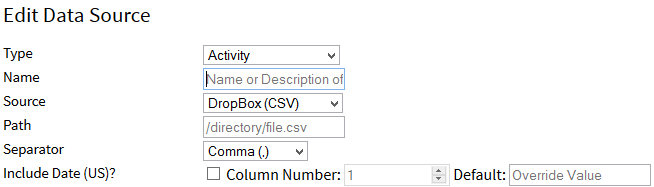
We can produce a Comma Separated File (CSV) and read them from Amazon S3, DropBox, Google Drive, and OneDrive. This is a simple way to import data from other services or to export files for backups or sharing with other applications. To allow the maximum flexibility and support with all services, the configuration is quite rich. Here is how you configure it:
- Set the Path to the file you wish for us to read or modify. You may include {tasktype} anywhere in the Path, and we will replace it with the kind of data the task syncs — so /exports/{tasktype}.csv becomes /exports/Activity.csv on an Activity task and /exports/Sleep.csv on a Sleep task. This lets one folder hold several tasks without them overwriting each other.
- If you give us a folder rather than a file, we will use FitnessSyncer-{tasktype}.csv inside it, for example FitnessSyncer-Activity.csv.
- Indicate the separator we should use for the file. If you do not find the one you need, contact us.
- If your file contains comment blocks, select the comment prefix character. If you do not find the one you need, contact us.
- If your file contains a block of text at the top, you can change the starting row to the row number where the headers are located.
- For each column in your data, select the checkbox to the left of the Column Number and then enter the column’s numeric index. For example, in Excel, if the column is B1, this value would be 2.
- For any data you do not have in your data, you can enter an override value in the Default column.
- Some CSV files are daily summaries of activity data, and in such cases, you may wish to group these by the date so that you do not have a lot of records per day (such as once per minute). To do so, check the “Group data by Date?” checkbox (this is presently only available for Activities).
- Some CSV files have the verbose data per meal, and in such cases, you may wish to group these by the date so that you do not have a lot of small records. To do so, check the “Group data by Meal?” checkbox (this is presently only available for Nutrition Information).
- Some CSV files come with a non-qualified time zone, and in such cases, we default to your Profile’s time zone. If the unqualified date and time is actually in UTC, you can override it via the “Force UTC time zone for non-qualified dates?” checkbox.
When exporting your data, the “Daily Summary to have Total Counts” gives you flexibility on your summary row. When not checked, it will show you the exact data as shown in your Stream. If this option is checked, the daily summary row will contain the total steps for the day. If there is no summary row by default for that date, one will be added to your dataset.
To help with the column mapping, you can select the “Choose Columns by Uploading Sample” button, which will allow you to upload a sample portion of the file, then interactively map the columns and save that configuration. This is a great way to ensure that you have all of the required fields, such as a start date.
All other settings are just like the Sources or Destinations.
Some services may produce CSV files that represent an activity. Such files are supported, but you must use the Map-based option to configure this.
To configure Amazon S3, place your Access Key into the username field, your Secret Key into the Password field, and for the path, use bucket/directory/file.
If you receive an error indicating that a row does not have a date provided or an activity or description or not enough information for the row, more than likely you are missing a required field or that it was unable to be parsed. We recommend using our Sample Uploader, which will list the required fields for that data type.
Note: For destination tasks, we do not rewrite the file but rather append the file with what we believe is the new information. If you delete the file and want to repopulate it or you have changed the structure of your exported data, you will need to Reset the task.
CSV and Dates
We require dates for all items being imported.
- Choose Date (US) if your date looks like one of these:
- 07/27/2019 16:13:37
- 07/27/2019 16:13
- 07/27/2019
- Jul 27, 2019
- July 27, 2019
- 2019-07-27 16:13:37
- 2019-07-27 16:13:37 Z
- 2019-07-27T16:13:37Z
- 2019-07-27T16:13:37
- July 27, 2019 04:13:37 PM
- July 27, 2019 04:13 PM
- July 27, 2019 - 04:13:37 PM
- July 27, 2019 16:13:37
- July 27, 2019 16:13
- July 27 2019 04:13:37 PM
- July 27 2019 04:13 PM
- July 27 2019 - 04:13:37 PM
- July 27 2019 16:13:37
- July 27 2019 16:13
- Jul 27, 2019 04:13:37 PM
- Jul 27, 2019 04:13 PM
- Jul 27, 2019 16:13:37
- Jul 27, 2019 16:13
- 2019-07-27 16:13Z
- 2019-07-27 16:13
- 27-Jul-2019 16:13
- 07-27-2019 16:13
- 07-27-2019
- 16:13:37 PM Jul 27 2019
- 2019-07-27
- 2019/07/27 16:13:37
- 2019/07/27 16:13
- Choose Date (Non-US) if your date looks like one of these:
- 27/07/2019 16:13:37
- 27/07/2019 16:13
- 27/07/2019
- 27 Jul 2019
- 27 July 2019
- 2019-07-27 16:13:37
- 2019-07-27 16:13:37 Z
- 2019-07-27T16:13:37Z
- 2019-07-27T16:13:37
- 2019-07-27 16:13
- 27 July 2019 04:13:37 PM
- 27 July 2019 04:13 PM
- 27 July 2019 16:13:37
- 27 July 2019 16:13
- 27 Jul 2019 04:13:37 PM
- 27 Jul 2019 04:13 PM
- 27 Jul 2019 16:13:37
- 27 Jul 2019 16:13
- 27-Jul-2019 16:13
- 2019-07-27
- 27-Jul-19
- 27.07.2019 16:13:37
- 2019/07/27 16:13:37
- 2019/07/27 16:13
- 27.07.2019 16:13Z
- 27.Jul.2019 16:13
- 27.07.2019
- 2019.07.27 16:13Z
- 27.Jul.2019 16:13
- 2019.07.27
- 27/Jul/2019
- 20190727
- Choose Time in Seconds if your data looks like: 1564244017.
- Choose Time in Milliseconds if your data looks like: 1564244017000.
- If your date format has explicit columns for Year, Month, and Day, you would choose the Year, Month, and Day columns.
- If the time is not specified in one of the above formats, you can include it using the Time Format, which must conform to one of the following:
- 04:13:37 Z PM
- 04:13:37 PM
- 04:13 PM
- 16:13:37 Z
- 16:13:37
- 16:13
For data export, we will use the first format in the above configurations.
If your date format does not match one of the above, please contact us.
CSV and Enumerated Values
A few fields only accept one of a fixed set of values. These must match exactly as shown below — all capital letters, with underscores where shown — not the friendly name we display elsewhere in FitnessSyncer. A value that doesn’t match exactly is silently skipped for that row rather than rejecting the whole import, so it’s worth double-checking these if a field isn’t coming through as expected.
- Cycle Tracking — Flow Level:
NONE(None)SPOTTING(Spotting)LIGHT(Light)MEDIUM(Medium)HEAVY(Heavy)
- Cycle Tracking: Cervical Mucus:
DRY(Dry)STICKY(Sticky)CREAMY(Creamy)WATERY(Watery)EGG_WHITE(Egg White)
- Cycle Tracking: Ovulation Test:
NEGATIVE(Negative)HIGH(High)PEAK(Peak)
- Medication: Dose Unit:
ML(ML)MG(MG)MGML(MG/ML)MCG(Microgram)TABLET(Tablet)
My exported file does not contain the full data; why?
We track the data we have previously uploaded into the file, and so if you make a change to the file format or delete the file, it may not upload all of the data you expect. In these cases, you can force a full sync by Resetting your CSV destination task and then syncing again.
Do you have Sample CSVs?
We do not provide sample CSV files as it is intended to be used for data that we don’t know about. The intention is that you upload the data, map the columns in that data to what we expect, and then we can import it.
For some services, we do provide some sample configurations in the related section below.
If you require assistance, please contact us.
No data is importing; What are the required fields?
Usually, when no data is importing, there is a required field that is missing. The error message typically will indicate which field that is.
Below is the list of required fields. Because there are various ways to build some data types (such as dates), this tends to be a generic title. If you need help, reach out to us with a sample, and we can help.
Required Activity fields
- Date
- Activity or Description
Required Allergy fields
- Date
- Name
Required Body Composition fields
- Date
- Weight
Required Blood Pressure fields
- Date
- Diastolic
- Systolic
Required Cholesterol fields
- Date
- LDL
- HDL
- Total Cholesterol
Required Condition fields
- Date
- Name
Required Cycle Tracking fields
- Date
Required Glucose fields
- Date
- Glucose or A1C
Required Medication fields
- Date
- Name
Required Nutrition fields
- Date
- Calories or Water or Glycemic Load
Required Oxygen fields
- Date
- SpO2
Required Sleep fields
- Date
- Bed Time
- Awake Time
Required Temperature fields
- Date
- Temperature
Does this only support Amazon S3 or does it also support Amazon S3 Compatible Storage?
At this time, we only support Amazon S3. If you have needs for an Amazon S3 Compatible Storage layer, please contact us to add support for you.
I cannot see my files in Dropbox Teams; why?
FitnessSyncer’s Dropbox integration does not work with Dropbox Teams as it is intended for personal usage. If you have quesitons on this, please contact us.
Can I upload directly into a Google Sheet or Excel file?
No, we only support uploading CSV files. You can use separate automation to import this data into Google Sheets or Excel files should you require that.