FitnessSyncer Calendar
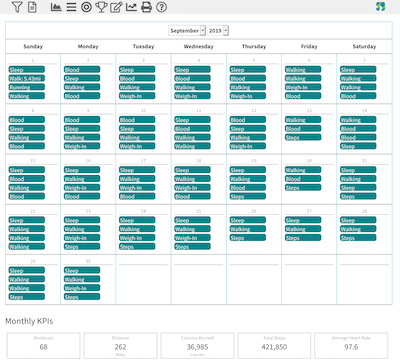
FitnessSyncer Calendar shows your health and fitness data in a calendar view and provides you with a summary of your month’s progress.
You may filter your data using the filter icon , where you can select the sources used in the display. FitnessSyncer Pro users can also choose the types of activities they would like to be shown, such as only showing Runs, Swims, and Cycling trainings. You can Save the filter as your default for each time you visit the Calendar by clicking Save in the Filter menu.
You can control the imperial or metric setting and time zone of the display in your Profile.
Month and Week Views
Use the View picker in the calendar toolbar to switch between a Month and a Week. The Month view lays your data out on a grid, one cell per day. The Week view lists the seven days one after another, with everything recorded on each day underneath it, so a busy day is easy to read without scrolling inside a cell.
FitnessSyncer remembers which view you were last using and returns you to it the next time you open the Calendar, so there is nothing to set.
- The arrows on either side of the date move you a month at a time in the Month view, and a week at a time in the Week view.
- The week begins on Sunday or Monday according to the first-day-of-week setting in your Profile.
- The KPIs below the calendar summarize whatever you are looking at, so they cover the month in the Month view and the week in the Week view.
Days With Many Readings
Some data arrives many times a day. A continuous glucose monitor can record every few minutes, and temperature and blood oxygen are often not far behind. Rather than filling a day with near-identical entries, FitnessSyncer groups them into a single row showing the count, such as “×30 Glucose”.
Click that row to open the full list of readings with the time of each one. From there you can click any reading to open it, or close the list and carry on. This works the same way in both the Month and the Week view.
Fitness Calendar
If you are looking for a pure Fitness Calendar, you can use FitnessSyncer Notebook to record your activities, and these can be displayed on the FitnessSyncer Calendar. It is very easy to use and very extensible to fit your needs.
External Calendars
If you use an online calendar such as Google Calendar, Outlook, Apple Calendar, or anything that supports .ics files, you can also see this information in your existing calendar application by clicking the icon from the toolbar and copying the link into your online calendar. The link will preserve all of the data filters you have applied (at the data-type level, not at the individual source), so be sure to do that first.