FitnessSyncer Uploader
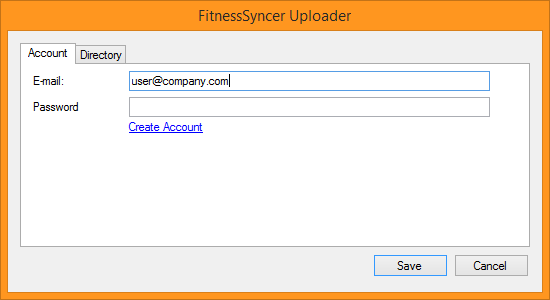
FitnessSyncer Uploader is an application you can install on your Windows or Mac computer to automatically upload your health and fitness information into FitnessSyncer and automatically uploaded into services like Strava. It is useful for devices such as Garmin, Timex, or Magellan, which store their data on your hard drive.
Getting started with FitnessSyncer Uploader is simple:
- Download FitnessSyncer Uploader
- Install the application and start it up
- On the first run, FitnessSyncer Uploader will bring up its configuration screen
- Enter in your e-mail address and password associated with your FitnessSyncer account
If you are using Two Factor Authentication (2FA), just enter it after your password.
- Under the Directories tab, enter one or more directories where your GPX, TCX, KML, KMZ, PWX, or FIT files are stored
- Save
Once saved, FitnessSyncer Uploader will automatically scan the directories and their subdirectories and upload the content to FitnessSyncer Notebook. You can see it in the Stream, Dashboard, or push it to another service using a Sync Destination Task.
Are your files on your phone or tablet?
You do not need a computer for this. The FitnessSyncer App can watch a folder for you: on the Sources and Destinations tab, tap Upload, then Choose a Folder, and pick Upload and Keep Watching, or Watch for New Files to leave what is already there. From then on, new FIT, TCX, GPX, PWX, KMZ and KML files in that folder are uploaded to your FitnessSyncer Notebook by themselves. You can also add and remove folders under Settings, Watched Folders, and removing one leaves the files it already uploaded in your Notebook.
- On Android, the folder can be on your phone, on a network share, or in another app that provides folders. FitnessSyncer checks it about once an hour when you have a connection, whenever you open the app, and when you tap Check Now.
- On iOS, the folder can be in iCloud Drive, on a server connected in the Files app, or in another app’s storage. FitnessSyncer checks it when you open the app, from time to time in the background as iOS allows, and when you tap Check Now.
Are your files in the Cloud?
If you have all your files in a Cloud Folder, consider using Amazon S3, DropBox, Google Drive, and OneDrive integrations.
Just have a few?
If you just have a few of these files, you can upload them directly within FitnessSyncer Notebook by clicking the icon or using the FitnessSyncer App and using the Sources and Destination tab to upload files directly into your FitnessSyncer Notebook.
Limitations
- While we support CSV files of your activity from Amazon S3, DropBox, Google Drive, and OneDrive Cloud Storage providers or E-mail, we do not support them from the FitnessSyncer Uploader.
- While you can use FitnessSyncer Uploader to process data from services such as Samsung Health, Fitbit, Garmin, or Strava, you should prefer to use our native integration instead, which usually imports things more reliably and easier for you.
- FitnessSyncer Uploader presently does not support JSON-based exports from Fitbit or Samsung Health. We recommend that you use our native integrations instead.
Where are the logs?
For FitnessSyncer Uploader for Windows, look in your home directory under: AppData\\Roaming\\FitnessSyncerUploader
For FitnessSyncer Uploader for Mac, look in your home directory under Documents/Library/FitnessSyncerUploader.